Tampilkan postingan dengan label #iPadAir. Tampilkan semua postingan

Senin, 03 Februari 2014

Great devices for your iPhone and iPad.

To start off 2014, I decided to not only do an App of the Week post on my Facebook page, but to include a Device of the Week as well.  There are so many different types of devices out there, all you need to do is head to an Apple Store (or online to Amazon) to see a wide variety, ranging from wireless speakers to heart monitors, to home heating systems and beyond.  I decided to highlight one per week, then create a blog at the beginning of the following month to highlight those devices.  Here's my list for January!

First, the Tego Power Grid.  We are all looking for ways to extend the life of our devices, well look no further.  Tego has created a fantastic device.  For starters, it packs enough power to charge your device twice without needing to be re-charged itself.  Can easily be recharged by plugging into the USB slot of a computer.  It's super compact and light-weight, and best of all, is only $59.00.


So if you are one of the many people who always find themselves looking for an outlet to charge their devices, go get yourself the Tego, you'll be happy you did.

The next device that I highlighted in January just blows me away.  For those of you who still don't realize that there is an app for almost anything, check this baby out...Have you ever found yourself looking for a device, or system to help you keep track of your health?  A device or system that won't cost you an arm and a leg, but tracks and monitors you throughout the day?  Well if you fit that description, I've found the perfect device for you!  It's the Fit Systems Arm band by Body Media.  


If you are overweight, and looking for help counting calories, this beauty helps you keep track of your caloric count.  The calories going in, and the calories burned!  Sweet!  It helps you achieve your fitness goals by accurately tracking your daily activities.  Finally, it monitors how well you are sleeping!  As you may expect, the device comes with an App, to help you keep track of things while you are on the go.  So whether its you looking for some help with your health, or someone you know, I highly recommend the Fit Systems Arm band.

Ok...So the first two devices for January were quite cool.  The 3rd device that I highlighted in January is downright HOT!  Now if you are like me, you like your music clean, with rich bass and ultra-clean treble.   There's nothing worse for me than listening to some great music on some cheap speaker system with wimpy bass and treble that's overly tin-ee.  It's challenging to find small speakers that measure up!  We'll the UE Boom wireless speaker, from Ultimate Ears, ROCKS!   It will take the best bass from John Paul-Jones, and play it true.  It will make Miles Davis' horns shine.  All the while pulsating through a Neil Peart drum solo like a full blown set of floor speakers.  Yeah, it's that good!


The Boom starts at $199 (The limited edition Boom, the one right above, is $229).  An incredible feature of the Boom, that's not currently available on any other wireless speaker (that I know of), is that you can connect two Boom's via the Boom App to have totally mind blowing experience!  


So if you love your music, loud and crystal clear, the UE Boom is exactly what you've been looking for.  It can be found online, or at retailers like The Apple Store.

Ok, now for the final January device of the week...

In keeping with my music theme, my next device stays in the music genre.  I've attended more concerts in my lifetime than I can remember.  I followed the Grateful Dead for a bit in the early 90's, have seen more than my share of Dave Matthews shows as well.  I always wanted to record my concerts, but never had the right equipment.  Well look no further my friends.  Let me introduce you to the IQ5 Stereo Recorder.  


The iQ5 is a high quality stereo condenser mic.  Perfect for recording your favorite concert, or your child's first piano concert.  The iQ5 has a rotating device that allows audio recording with the optimal left-right stereo orientation, regardless if you are using it horizontally or vertically.

The Zoom has a companion app that allows you to record in linear PCM, 16-bit/44.1kHz format for CD-quality audio, that accurately captures the music and spaces.  It even records in compressed AAC format when you need smaller faster data transfer.  


Now I realize that to most of us the kHz and AAC compression won't really matter.  It was more for the audio files that read my blog (ha ha ha!).  All the rest of us need to know is that it records well, and can record in compressed format if you need to!  

So there are my choices for January's Apps of the Week.  The Tego Power Grid, The Fit Systems Arm band, The UE Boom Speaker, and finally the iQ5 Zoom recorder.  Keep up with my February Apps of the Week on my Facebook page, http://facebook.com/theMacMentor, then comeback early March and I'll have another blog post for the February App/Device of the week choices.

Thanks to all for reading...and if you have a favorite App/Device let me know about it!

Until next time, Best to you and your devices!


Jumat, 17 Januari 2014

Google Docs vs. Pages for iCloud

Google Documents vs. Pages for iCloud


The past few years have seen a big push by technology companies to get more and more things done “in the cloud”.  Both Google and Apple have been key players in this arena.  I think it’s safe to say that Google has done more, and done it better, than Apple.  Where Apple’s strength has resided in hardware and integration of its software to that hardware.  Apple did get a head start with their “cloud” services, introducing .Mac back in 2002.  .Mac provided email service, 100mb of storage, plus hosting of your website(s).  Apple charged $100/year for this service and it was not very good.  Two years later,  Gmail came online.  It was the beginning of Google's “cloud” services,  and for the most part got rave reviews (I’ve been a GMail users since the summer of 2004).    Apple more or less stumbled through .Mac, which was later replaced by MobileMe in 2008.  One of MobileMe’s intended uses was as a syncing technology for content on your Apple devices (poor man’s iCloud).  Sadly MobileMe was a constant source of headaches for users and Apple.  Meanwhile, Google was quietly building (and buying) a cache of better than adequate “cloud” products and tools.  Which leads us to today’s blog, where I compare Google Docs to the newly released Pages for iCloud. 

Google Docs had a significant head start, as it’s been around (in various forms) since 2005.  It officially came out of “beta” status in 2009, giving it an unofficial  four year head start over Pages for iCloud.  Google Docs provides Google users with a free web-based word processor.  If you have a Google account, you simply log in, click on Google drive, then Click Create, and you have the option to create a Document, Presentation, Spreadsheet, Form or Drawing.  


If you click on the Document option, The screen capture above is  a glimpse of what your document window looks like for Google Docs.  Similar to many desktop word processors you have a full set of menu options.  Left to right you have File, Edit, View, Insert, Format, Tools, Table and finally Help.  Below are the File Menu options.  One option you may notice to be missing is the Save and Save As options.  That’s because with Google Docs, as you edit, it saves automatically.


The next menu option we’ll look at is the Edit menu option.  Again very similar features to most desktop word processors, from the Undo option, down to Find and replace. 


Another menu option I want to point out here is the Font option.  On the 2nd row of tools, the Row that starts with the Printer icon, in between the Style button, and Font size button is Fonts.  When you click on the Fonts button, you only get 8 fonts off the bat.  Don't fret, you have the ability to choose more.  Simply slide down to the more fonts option and you'll find a rather exhaustive list of fonts for your writing pleasure!  


Another nice feature of Google Docs, is the ability to share your documents with your co-workers, friends, family, teachers etc. etc.  Simply press the Share button.  Once you do, you'll be prompted with the screen capture you see below.  Google creates a link, you can share via email, Google+, Facebook or Twitter.  You can even have multiple people editing a document at the same time, not that you'd want to...:).  


Now I’m not going to go through each menu option here, the point I’m trying to get across to you, is that you’ve got a nice option here with Google Docs if you are looking for a free on-line document creation tool.  Oh yeah, did I mention it's free, as long as you've got a Google account.  Also, Google Docs can be created on any browser (using any computer), and the documents can also accessed on your iOS (and Android) devices as well, through the Google Drive App.  

This is a great tool which gives you incredible flexibility with your documents.  Create them from your computer, and when you are on the go, or away from your office, use your iPhone or iPad to edit the document as you need.  

Ok, now let's see how Apple's Pages compares to Google Docs.

It’s taken Apple considerably longer to bring the iWork suite online, but, at least they’ve done a better than average job now that Pages is available.  To use Pages (in iCloud), you must have an iCloud account.  To access Pages, you sign into iCloud.com and simply click the Pages icon (see below).  


What you see above is the new landing page.  All new icons (to match iOS 7).  On the lower row, you'll see Pages, Numbers and Keynote.  To start a new document, simply press the Pages icon.  If you already are a Pages user, your screen will look similar to mine below.  You'll see your documents, and perhaps folders if you've chosen to create them.  If you are a new user, you'll only see the + icon, which is what you'll click to create a new document.


Interestingly, folders are created on your iOS device.  As of this writing, with Pages still in beta, you can't yet create folders from the browser.  Document folders work the same as App folders on your device.  You can drag a document into the folder, and also out of the folder (from your device, not from a browser).  Ok, let's move on to creating a new document.  An AWESOME feature in Pages is the ability to choose from numerous document templates!  This is something NOT offered in Google Docs.  So whether it's just a plain document you need to create, or a report, or letter or resume, Pages gives you multiple templates from which to choose (see three screen captures below).  Advantage Pages!  


There are more templates than the ones I've shown above.  There are envelope templates, business card templates, flyer and poster templates, card templates and finally newsletter templates.  Apple has really taken into account what type of document you may be creating, and given you some great templates to help you make the best document possible!

For the purposes of this blog, I'm going to create a blank document.  Here's what it looks like.


As you can see, you are presented with a new window.  Unlike Google docs which opens up within Google drive.  Not that it really matters, but with iCloud Pages, it really looks like you are using a desktop application!  Along the top, you have a button to enlarge, or shrink the page.  You have Undo and Redo buttons.  Next you see buttons for Text, Shape and image.  Clicking Text will drop a text box on your document.  Clicking Shape will provide you with a series of shapes you can add to your document.  Finally the image button will let you add an image to your document.  

Now Apple recently updated the Mac version of Pages.  Ideally, it look and works exactly the same as the web version.  This is great as you only have to learn how to use it one place to be able to use it anywhere!  The iOS version also has the same interface.  

On the above screen capture, on the right side, you see options for your text.  First you have paragraph style, below that Font, then Alignment, Line Space, Paragraph Spacing, List Style, then finally Indent.  All the options cleanly laid out, easy to see, and more important, easy to use!

Pages in iCloud alleviates the need to save your documents.  It simply saves as you type.  Google Docs also does this.  It's a wonderful feature that saves you the worry of wondering if you saved your doc and when it was last saved, and you can't put a price on that!

Similar to Google Docs, Pages gives you the option to Share your document.  Along the top toolbar (above), you'll see the Share button.  Press it and you'll see a window like the screen capture I'm displaying below.


Click the email button and you can email the document link to multiple people, who can in turn edit the document and save it back to your iCloud!  Nice...

Pages let's you share the document in multiple formats as well.  You can save it in either the Pages format, Word format or as a PDF.   Google Docs only lets you save as a Google Doc type.  Another win for Pages.  

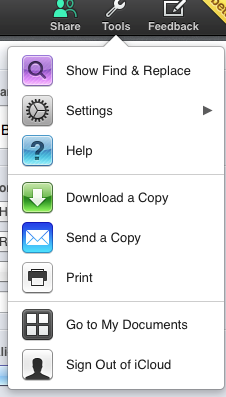
The Tools button gives you a series of choices (the screen capture below).  There you have the Find & Replace option, additional settings, Help.  You can also download a copy, email or print the document, go back to all your docs, or finally Sign out.  


One other item of note for pages, it lets you upload a Word document, edit it, and even save it back to Word format.  Can't do that in Google Docs.

I really love what Apple has done with Pages in iCloud.  It's a wonderfully full featured cloud based word processor.  Like Google Docs, it's free (to those with an iCloud account).  I highly recommend trying and getting comfortable with it.  If you have an iPhone 5S or 5C or iPad Air, you can download Pages for those devices for free.  Giving you the ability to have your documents with you anywhere you go.  

In conclusion, both cloud based word processors are very very good.  They are easy to use, full featured, and give you access to your documents where ever you are (via your iOS devices).  Not to bash Microsoft (even though I thoroughly enjoy doing that!), as they also have a cloud version of Office (Microsoft 365), but guess what?  They charge you for it!  $99 dollars a year, or $9.95 a month.  Why bother when you have two great options that are free!  

I hoped you enjoyed today's blog, and I hope you try one or both of these cloud document tools out as it's the future, and it's better to be comfortable with it sooner rather than later!

Until next time, best to you and your devices.  And as always, I welcome your comments.


Senin, 02 Desember 2013

iOS 7 Tips and Tricks...

Hi!  I hope you all had a wonderful Thanksgiving, and those of you that celebrate had a great Chanukah!  It's been almost two months now since iOS 7 was dropped in our laps, and I've been quite surprised at how few people have actually like it!  I do workshops all over the Chicagoland area, and I have not had more than a handful of people that have said that they like it better than previous iOS iterations.  I've been using iOS 7 since the first beta release came out this summer, and I actually like the changes.  So I came up with a list of 25 helpful tips and tricks that I am going to be posting.  12 in this blog, and 13 in the next (coming in a few weeks).  I'm anxious to hear your thoughts on iOS 7, what you like, and what you dislike.  Remember this.  You all were VERY familiar with the previous release of iOS (1-6).  Almost nothing changed visually, there were tweaks under the hood (in settings), so iOS 7 was a major change, and most people don't like change.  I'm here to challenge you to grasp iOS 7 and make yourself like it, because it's hear to stay!  Hopefully this blog (and the one that follows) will help make your iOS 7 adoption all the more easy!  So here we go!

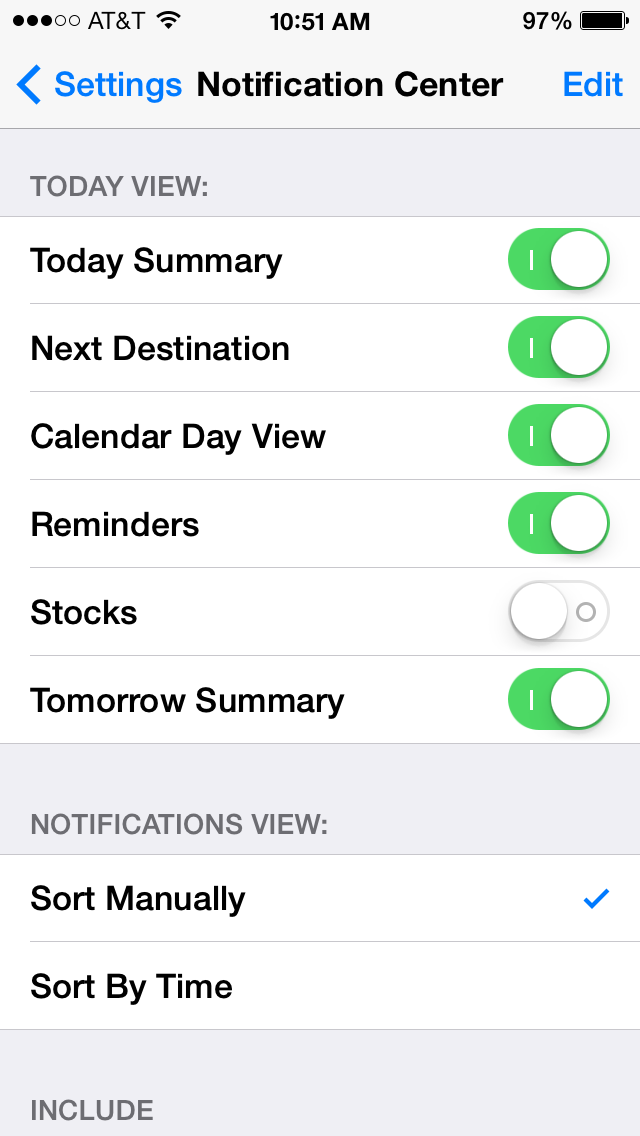
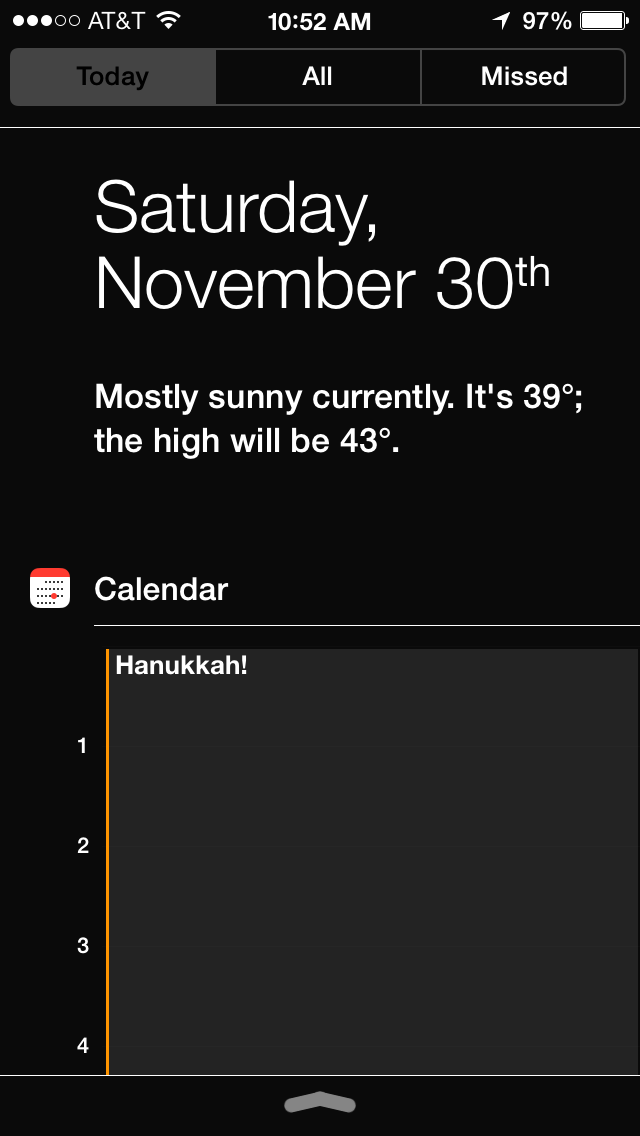
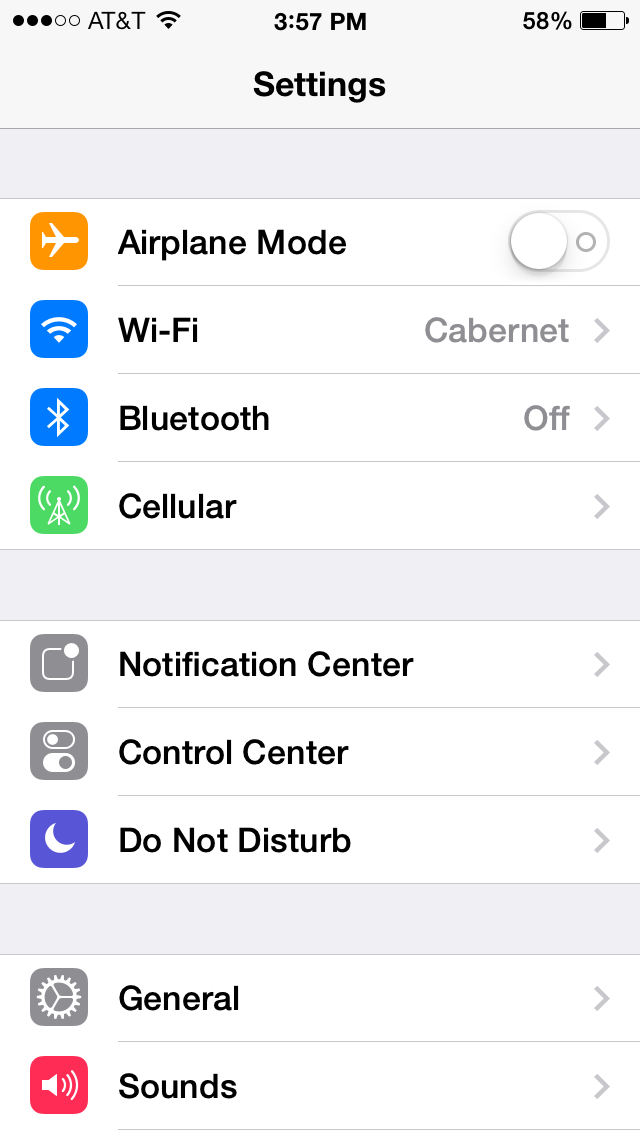
First, I'm going to start with the Notification Center, or as I like to call it, the "What's Happening in your life" Center.  The Notification Center in iOS 7 is WAY more than just alerts.  It tell's you what's going on in your life (that is, if you use the Calendar on your phone and not some paper calendar!), as well as what's going on in the rest of the world.  What's great about the Notification Center, is that you get to decide how much or how little gets displayed.  You just go into Settings > Notification Center and toggle on what you wish to see!


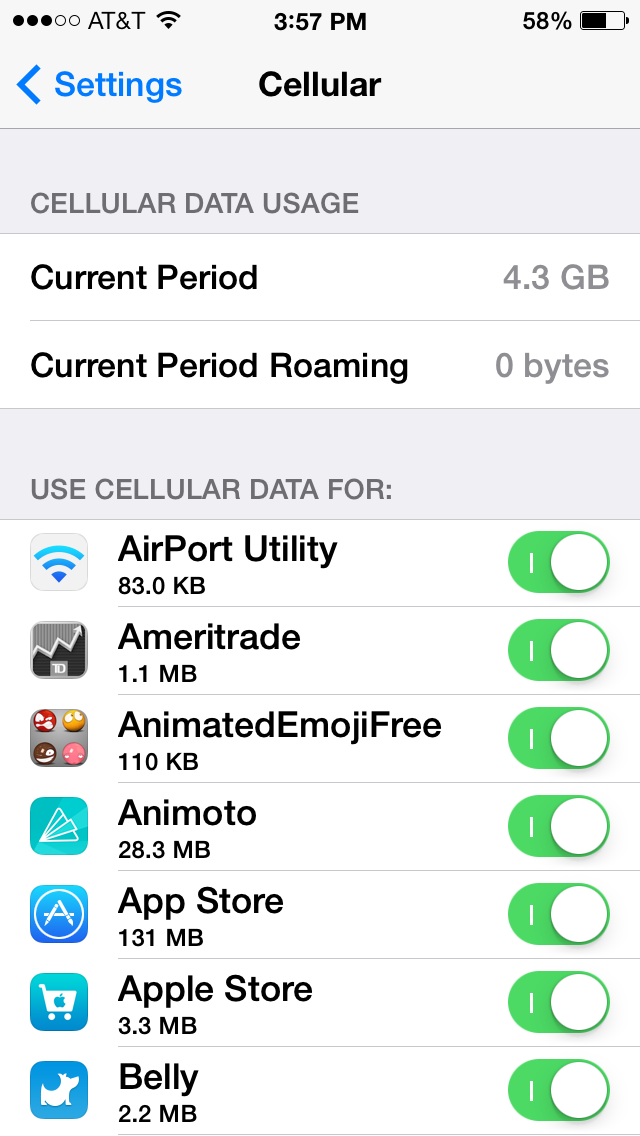
Prices of the iPhone have not changed since the iPhone 3 came out.  However the price you pay for the iPhones has gotten downright silly.  Prior to the 5S being released, there wasn't a great market for older iPhones.  There was a few outlets where you could sell your phone and get a couple of dollars, or you could sell it yourself on eBay or Craigslist (or to a friend etc).  Now it seems like everyone wants your old iPhone.  I Sold my 4S back to Apple, for $204!  I got my 5S for $12 (taxes).  Not quite sure how Apple is making money there, but I'm ok with that.  Problem is, the real cost of these devices comes from the carrier plans.  You may get the device for free, but the plans are anything but free!  Now with iOS 7, you can decide which apps get to use your data plan, and which ones don't!  I call this the "Save the data" setting!  Here's how it works:  In the Cellular Setting, slide down and you'll see Use Cellular data for:  Underneath that header, are all your apps.  You can toggle on/off the apps you wish to use while not on Wi-Fi.  Saving your precious data for what's important, and possibly saving you some money as well!


Siri has come along way since it was first introduced.  Now with iOS 7 you can change Siri's voice from the familiar female voice, to a new male version.  This is very easily accomplished by clicking the General Setting > Siri> Voice Gender


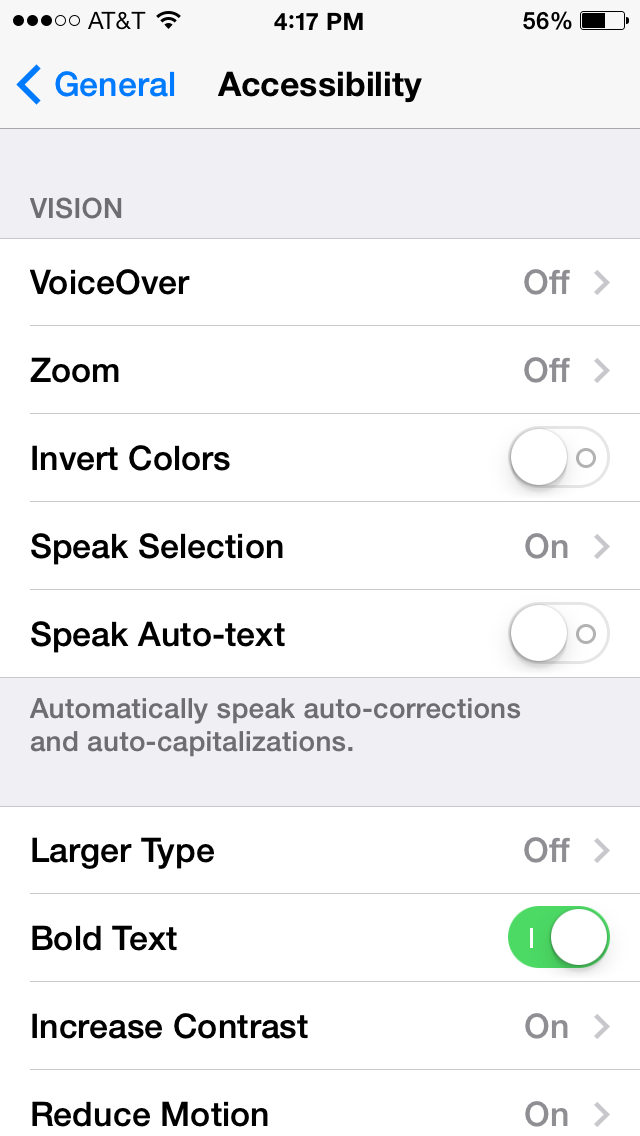
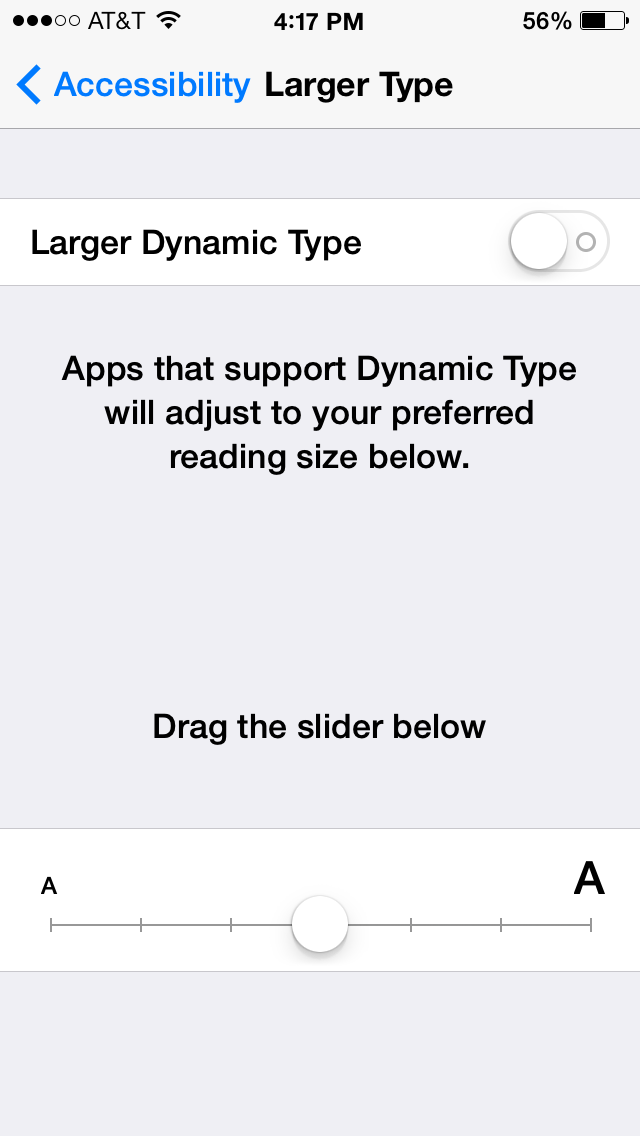
Next tip...Bigger may or may not be better...when it comes to text that is...:).  You always had the ability to increase text within the apps that came with your iPhone (or iPad), now in iOS 7, you can increase or decrease text size in all apps that support resized text.  Simply go into the Accessibility setting, (within General), tap the Large Type setting (toggle it On).  A feature that is long overdue for those of us who may have a hard time seeing smaller text...


I've had numerous clients, friends and family tell me they think the text in iOS 7 is harder to see than in previous iOS versions.  Well, it is!  The white background used in iOS 7 has made the text appear less easy to read than it did in iOS 6 and earlier.  How do you change that, glad you asked...:).  Back in the Accessibility Setting, you'll want to toggle the Bold Text setting to On.  Just a heads up, when you do this, your phone will prompt you for a restart.  It's ok, let it restart, when it turns back on, your text (in every app!) will be much easier to see!  


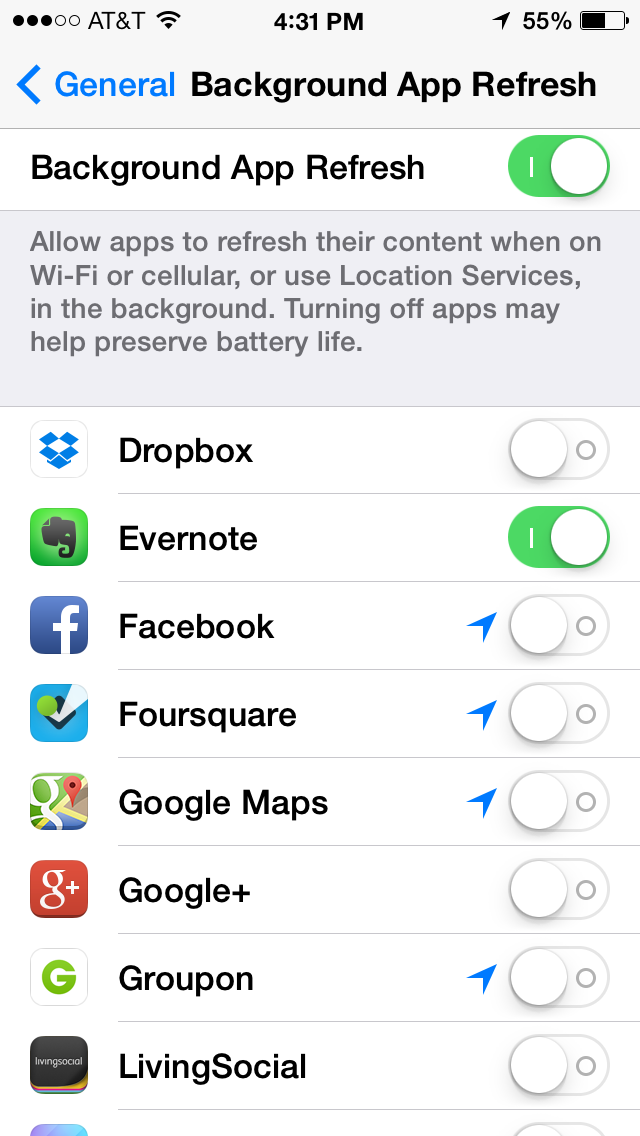
Finally, real multi-tasking comes to your iOS device.  Now with iOS 7 you have the ability to choose if you'd like your apps to update while running in background mode.  This can be very useful, but, for the iPhone, can also assist in battery drainage, so be careful.  Within the General Setting, go to the Backgroup App Refresh setting, and choose which apps you'd like to have the ability to update in the background.  


I have been pleading with Apple, since the first iPhone came out, to implement automatic updates.  It's coming they kept on saying.  Well, it's here!  No more, "I'll update my apps later, it takes too long!"  Now you can have your Apps update automatically!  This is very easily accomplished by going into the iTunes and App Store Setting, and under Automatic Downloads, toggle the Updates switch to Green (or on)!  Thank you Apple!


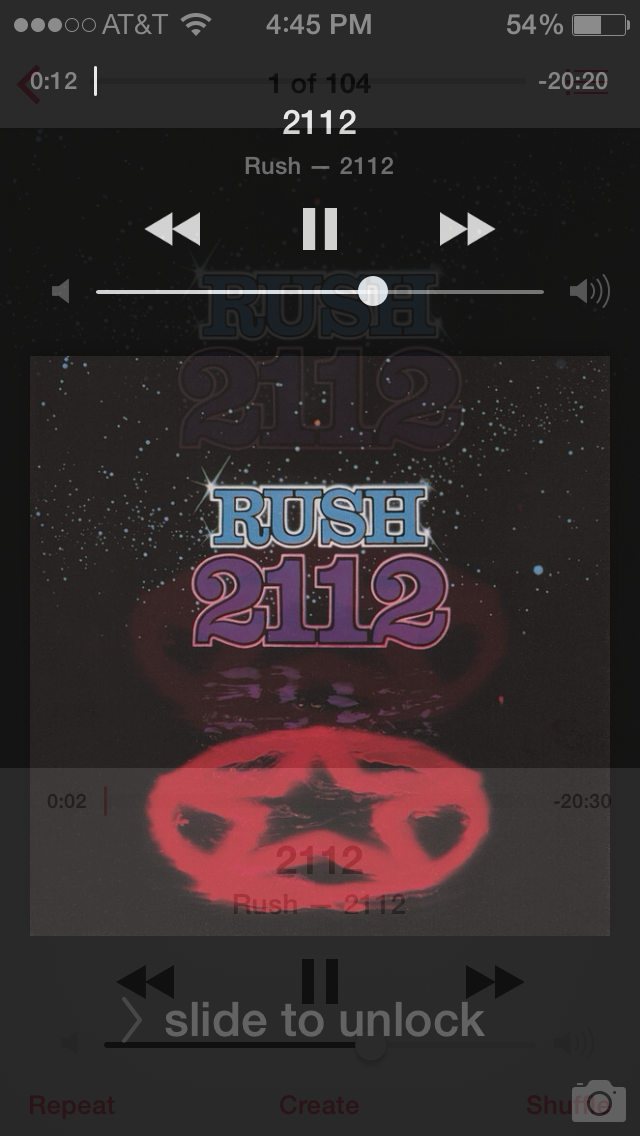
Ever use your device to listen to music?  Ever have the screen lock while listening and then you want to fast forward to the next song, only to have to hit the home button to do it?  Now, a feature that's been on the iPad for a while, comes to the phone, as the lock-screen has been significantly enhanced to allow you to simply tap the pause, fast-forward or reverse button, and not have to press the home button to get to your music.  Maybe not the biggest or best new feature, but a welcome one for sure!


Many of us don't bother with Restrictions, or worse are not even aware they are available on our iOS devices!  Now, in addition to being able to restrict explicit song lyrics and "mature" apps, iOS 7 lets you limit adult content in Safari as well.  You can even add specific sites to the list that you may want to keep away from younger kids (or any kids for that matter!).   Simply go into General Setting > Restrictions  and Enable Restrictions.  Then slide down to the Websites setting and you can decide what you wish to restrict.  Another nice addition by Apple.  


And Apple said, "no longer do you have to download a flashlight App!"  There are a lot of great new features in the Control Center, one of them is the addition of a Flashlight.  Why it wasn't added sooner doesn't really matter, it's here now!  Simply bring up the Control Center, the bottom has four icons, the first being a Flashlight, simply press it and what do you know, your iPhone is a flashlight.  Nice...

There's a new way to share (on newer devices), AirDrop!  I'm sure you've emailed or texted a picture (or file) to one of your contacts (if you haven't, you need to call me and we can set up a session!).  Now, with iOS 7 there's a new way to share, AirDrop.  AirDrop is a new feature that uses Bluetooth technology to find other iOS 7 devices (that are AirDrop capable, not all are) that are near you,  and now, instead of messaging or emailing a file you can AirDrop it.  To do this, you  must have at least an iPhone 5, or iPad 4 running iOS 7...


Lastly for this blog, Make sure you set boundaries up for AirDrop!  One thing to be very careful about is who you share things with!  If you are sitting in an airport, and you go to AirDrop something to a family member, make sure you set AirDrop to Contacts Only.  If you turn on the Everyone setting, you'll end up seeing iDevices that you don't recognize, and you don't want to accidentally send something (personal) to an unknown, or unsuspecting person...:).  


There are well over 100 cool new things within iOS 7.  I hope what I've shown you today helps you improve how you use your devices.  I will be doing another blog shortly covering additional new features.  Until then, if you come across ones you'd like to share, please do so by commenting here.  As always, I hope you enjoy reading my blogs, I enjoy creating them for you!  Until next time...

Best to you and your devices!