Tampilkan postingan dengan label #MacAdvice. Tampilkan semua postingan

Senin, 24 Maret 2014

How to handle Downloads on your Mac...

The Mac operating system, OSX has many great features built into it, so many that I could write a blog on it!  In today's blog, I want to focus on the Downloads folder.  Now if what I'm writing seems like a no brainer to you, congratulations, you are ahead of the game.  For many of Mac users, the Downloads folder is a scary place to visit.  A place where not just one version of a file exists, but multiple versions (I've seen Download folders with 10 copies of the same file!).  How does this happen?  Well it's actually quite easy.  Here's a great example.  You get an email from your work with an attachment, perhaps an Adobe PDF file.  You click to download it, only you don't realize where it goes, so when you come back to the email either later that day, or perhaps in a few days, you click to download the file again because you have no idea where it went, or what actually happened to it.  Sound familiar?  You are not alone!  Email is not the only culprit to a fattening Download folder.  Have you ever downloaded something from the internet?  Once or twice you say...:).  Well folks those files also contribute to an overburdened Download folder.  So how does one manage this beast?  I have some ideas you may wish to consider.

Not to be a bragger, but this is what my Download folder looks like.


There is one file in my downloads folder (it belongs to my son).  The only reason it's there is because I need to see if it's a file he needs (otherwise it's to the trash!).  Now I'm not saying your Downloads folder needs to be as empty as mine, but I recommend emptying it out, often, so it doesn't fill up. Another reason to empty the Downloads folder, is that Finder has a place for your all your files.  If you are familiar with Finder, you'll recognize that there are numerous Folders.  A folder for Documents, the aforementioned Downloads, Movies, Pictures, Music and a few others (my finder has folders for Box Sync, Copy, Dropbox, Google Drive.  These are all cloud apps that sync directly to my Mac via Finder).  If you use any of those cloud drives, your Finder may have those, or other folders.  

Now if you think about the types of files you are likely to have on your Mac, they probably fall into one of the following file types that have existing folders.  For instance if you download a document (Microsoft Word, Pdf, Pages, Excel Spreadsheet, Keynote presentation), it should come as no surprise that I would recommend to move those files to the Documents folder.  Similarly, if you download a picture or movie, those files should go into the Pictures or Movies folders.  

Quite often lately I've happened  upon clients with Download folders that have multiple versions of the same download.  As I mentioned earlier in the blog, this happens when you download the same file multiple times.  What happens is your Mac adds adds a number to each subsequent download.  So if you take my Downloads folder (above).  If I had downloaded the FinalPersonalReflection.pdf file multiple times I would have the original (as it is), then if I were to download it say 2 more times I'd have a FinalPersonalReflection 1.pdf and a FinalPersonalReflection 2.pdf.  Make sense?  So my advice to you is this.  If you think you've already downloaded a file, check your Downloads folder before you download another (unnecessary) copy of the same file.  If you have multiple versions (or copies) of the same file, delete them, no reason to carry more than one copy of the same file.  When you've deleted the duplicates, make sure you Empty your trash!  A great way to help speed up your Mac is to remove unnecessary files (like duplicates in your Downloads folder), and to Empty your trash.  

I hope this helps, and this is a lead in to my next blog, where I provide ideas on how to manage your files within their respective folders.

I hope this help you out, and until next time, best to you and your devices!


Kamis, 13 Maret 2014

Using Skype, Viber, KaKao and Factime.

Spring is almost here...and it couldn't come soon enough!  With spring comes spring break!  Perhaps you or your kids are traveling to other countries this spring (or summer) and you want to keep up with the folks back home.  You have a number of options.  First, if you are communicating to another iOS device you can simply use the Messages App or FaceTime to communicate.  If you are communicating between device platforms (iPhone to Android, or iPhone to PC), then you'll need an App like Skype, Viber or KaKao Talk.  


The Skype platform has been around the longest.  It's a great tool that allows you to communicate with others using Skype across platforms.  You can Skype with someone from a PC to a Mac, or an Android to a PC, or a Mac to an Android.  You get the picture.   It also works on the iPhone and iPad.    Skyping is free, so long as you are connected to a wireless network.  If you try and Skype from an iPhone in Mexico to an iPhone in Beijing, and neither of you are connected to wireless, your data charges from your carrier may not bankrupt you but they will be costly!  So make certain that you are connected to a wireless network, so when you Skype with someone, anyone, anywhere in the world, its FREE!  Now Skype also let's you call land lines anywhere in the world.  There are charges for that, and I recommend you visit Skype.com to make yourself aware of those charges.  

Ok, moving on.  The next App I'm going to discuss is Viber.  


Viber is a popular app with the younger crowd (teens and 20-somethings).  Viber provides basically the same service as Skype.  It's a cross-platform communication app (tool).  It let's you communicate to other Viber users for free, IF you are on connected to a wireless network.  If you are using your 3G or LTE connection, you WILL have data charges for using Viber.  Again is you are going out of the country, PLEASE make sure prior to using Viber that you have connected to a wireless network.  Otherwise your data charge(s) will be considerable, and your parents will get upset with you!    

KaKao Talk is another in a line of communication Apps, offering the similar services as Viber and Skype.  For the younger crowd it has some cool emojis that you can use.


All of these Apps are great tools to communicate across platform.  If you are communicating within Platform (Apple), I highly recommend using the Apple tools:  iMessage (Message App on your iPhone/iPad) and FaceTime.  iMessage offers end to end encryption for messaging, and FaceTime offers crystal clear video and now audio.  iMessage and FaceTime CAN be FREE (between countries), if you are in a wireless network.  They are ALWAYS free within the United States (wireless or data).  

Real life story...Last summer my daughter was in Israel.  While on a Kibbutz (and connected to their wireless network) she FaceTimed me (many times).  You know how much it cost me?  ZERO.  How awesome is that!! A video call, between countries for more than 20 minutes, for FREE!!  Because she listened to dad, turned her cellular off and connected to wi-fi...good kid!

So parents you have some good options to communicate with your kids while they are out of the country this spring break (and anytime for that matter), you just need to make them aware of shortcomings (not using wireless).  

Enjoy the warm weather, enjoy spring break, keep the kids (and yourself) on wi-fi while out of the country!

Until next time, best to you and your devices!


Selasa, 12 November 2013

More Tips and Tricks for Mavericks...

So I hope you enjoyed my earlier blog that went over a handful of new features for Mavericks...there are so many that I could be doing this every week for the next 8 weeks or so...Here I've listed 9 more that I think are important, and very good additions...I hope you feel the same.

Keychain Sync...
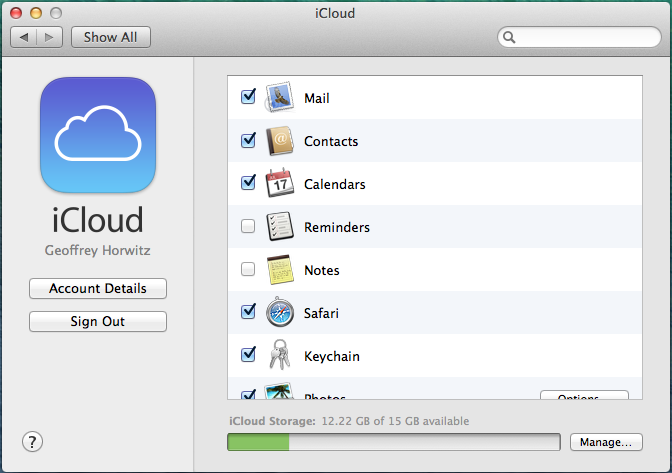
iCloud Keychain is a new feature that lets your OS X keychain sync with your iPhone/iPad, allowing you to autofill your passwords regardless of which device you are on.  It's quite easy to turn this feature on, simply go to System preferences > iCloud, then check Keychain.


Upgraded Mission Control
If you are like me, and  run multiple apps at once, I sure hope you have become accustomed to using Mission Control.  If you use multiple displays, you'll love this new addition to Mission Control.  You now have the ability to not only drag windows from one display to another, but to also drag full-screen apps from one display to another.  Simply drag the apps full screen thumbnail to whichever display you desire, and it will assign the app to the selected display!


Website Notifications
When Mountain Lion was introduced, along with it came the Notification center for the Mac.  Now, with Mavericks, you can get notifications from websites and you don't even have to be in Safari!  Notifications are managed within Safari > Preferences > Notifications.  


Delaying App Updates
Did you ever have a situation when you were in an app and you got notified that there was an update and you needed to exit the App immediately in order to perform that update?  Well no more...:)  You now have the ability to delay updates is a restart is required.  You can choose either to update immediately, or "Try in an Hour", "Try tonight", or "Remind me tomorrow".


Do Not Disturb...
Finally, DND is available on the Mac!  Now, just like on your iOS device, you have the ability to choose what time you wish to be left alone!  DND is set up simply by going into System Preferences > Notifications > Do Not Disturb.  You can pick which hours you wish to be left alone, or if you are connecting to TV's or other projectors, you can turn DND on in those instances as well.  You can also choose to stop  FaceTime calls from coming in when DND is on...


Send Messages through the Notification Center
If you'd ever wished you could send an iMessage from the Notification Center, well your wish has come true...now, if you have turned on the "Share Buttons" in the Notification Center you can do just that.  Simply click the iMessage button, type the recipients address, then the message and hit send and you can now text directly from the Notification Center!


Finder Tabs
Tabs have been around in Safari for a while now, and I don't know about you, but I've wondered why Apple hasn't introduced tabs in Finder?  Well, wonder no more!  You can create Tabs in Finder!  Wahoo!  While in finder, simply press command + T, and just like in Safari, you'll have Tabs!!


Re-enable your Library Folder!
Not sure what Apple was thinking when they removed the Library folder in OSX Lion, but you can now un-hide the folder.  Simply navigate to your home folder, and press Command + J


Editing your Tags
New with Mavericks is the ability to Tag files (instead of labels).  You can also change the Name or meaning of these tags by going into Finder > Preferences >Tags, then double clicking whichever tag you wish to rename.  


I hope you are enjoying Mavericks, lots of cool new features, I'll be posting more in the coming weeks!

Until then, best to you and you devices!